Tags
A tag is a short label on a guest: "VIP", "late arrival", "travels with a dog". Your property has one shared list of tags, and everyone on the team picks from it, so the same thing is not spelled five different ways. The list lives in Manage → Tags, at /tags.
A tag belongs to the guest, not to a single conversation. Tag someone in their Telegram chat and the tag is there in their WhatsApp chat too, in their profile and in the guest list.
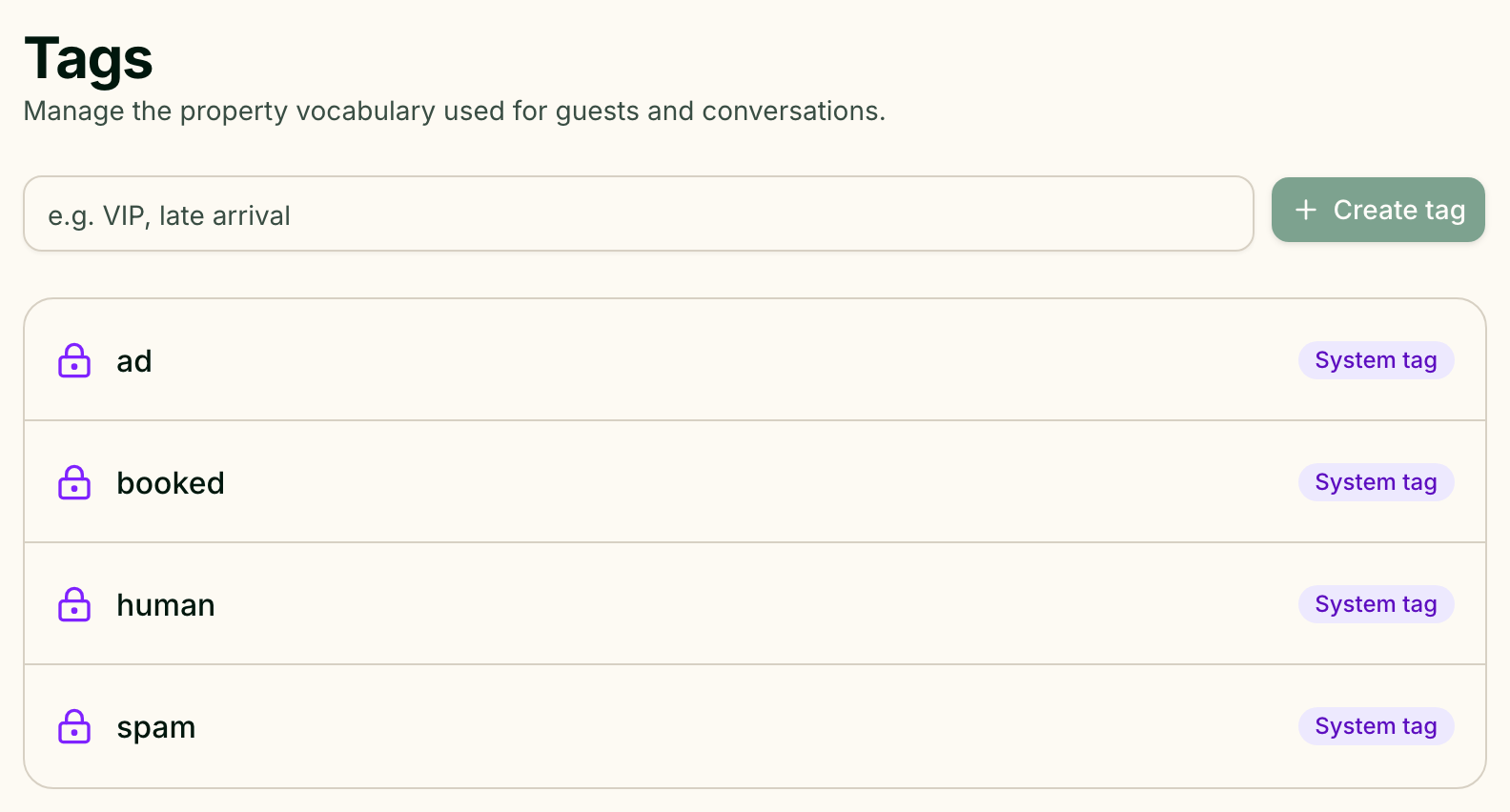
Build the list
Type a name into the field at the top and press Create tag. A name can be up to 50 characters; extra spaces are trimmed. Names do not depend on case: if "VIP" exists, "vip" is refused with This tag already exists.
Each row has two buttons:
- Rename tag — the new name replaces the old one on every guest who has it;
- Delete tag — removes the tag from every guest. It cannot be undone.
Roles that are not allowed to change the list see it with a Read-only access note, and without the field and buttons.
System tags
Every property starts with four tags that Greetio itself relies on: booked,
human, spam and ad. They carry a lock and a System tag badge. You
cannot rename or delete them, but you can add them to a guest and take them off
like any other tag.
Tag a guest from a conversation
Open the conversation. In the guest panel on the right, the Guest tags section shows the guest's tags:
- Press + (Add tag) and start typing in Search tags….
- Click the tag you want.
- If there is no such tag yet, the list offers to create it: "Click to create tag … and add it to the guest." One click adds it both to the property list and to this guest.
To take a tag off, press the cross on it. The link at the bottom of the list, Settings, opens the Tags page.
The same controls appear in the guest's full profile and on the guest card in the calendar.
Find conversations by tag
- The filter rail. The inbox has a Tags section listing every tag of the property. Pick one to see the conversations of guests who have it. Pick several and you get guests who have any of them. Manage tags at the end of the section opens the list.
- The search box. Search in the inbox also looks at guest tags, and shows which tag matched.
The guest list has its own tag filter, and mailings can be sent to guests with a given tag.
Current limits
- Tags are for guests only. You cannot tag one conversation without tagging the guest and, with them, all their other conversations.
- No colours. Tags differ only by name; system tags are the only ones that look different.
- One tag at a time. There is no way to tag several guests at once.