Quick replies
Guests ask the same things every day: what time is check-in, where to park, how to get from the station. A quick reply is a saved answer you drop into the conversation in two clicks instead of typing it again. Nothing is ever sent on its own — the text lands in the message box, and you decide what to do with it.
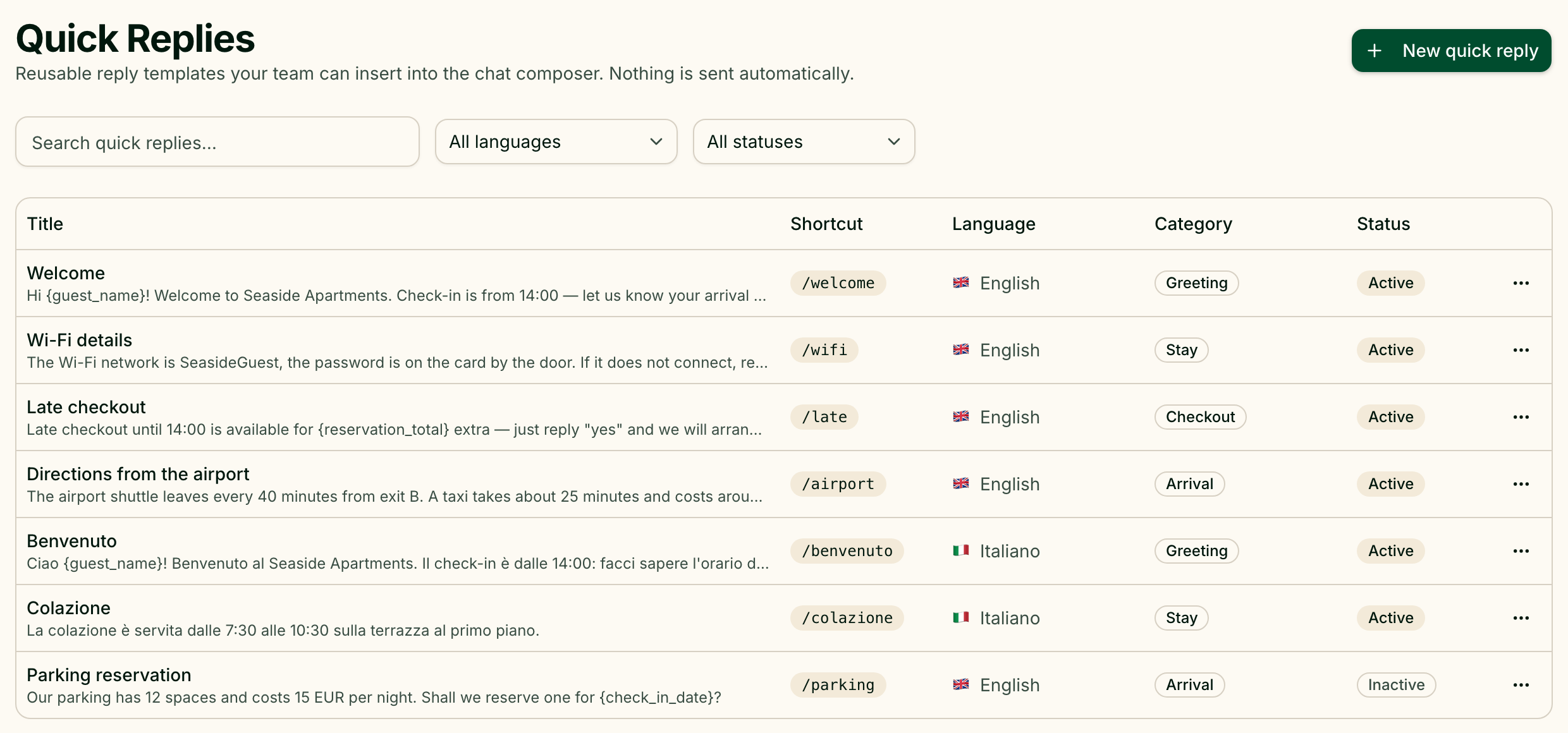
Quick replies are managed in Manage → Quick Replies, at /quick-replies.
Create a quick reply
Press New quick reply and fill in the form:
| Field | What it is for |
|---|---|
| Title | The name you will look for, such as "Check-in time". Required |
| Shortcut | A short word for typing it quickly, such as checkin |
| Language | The language the reply is written in |
| Category | Optional, to keep a long list in order |
| Message | The text itself. Required |
| Active | Inactive replies are kept but hidden from the conversation |
Press Save. The reply is available to the whole team straight away.
Personalise it
Under Message, Insert tags: offers five tags. Each is replaced with real data when you insert the reply into a conversation:
| Tag | Replaced with |
|---|---|
{guest_name} | The guest's name |
{check_in_date} | Check-in date |
{check_out_date} | Check-out date |
{room_type} | Room type |
{reservation_total} | Reservation total |
Preview shows the result with a sample name while you type. If you type a tag that Greetio does not know, it warns you that the tag will not be replaced.
When a value is missing, the booking tags turn into Not available, and a
missing name is dropped together with the comma next to it — "Hello,
{guest_name}!" becomes "Hello!", not "Hello, !".
Insert a quick reply in a conversation
There are two ways, and both leave the text in the message box for you to check and send:
- The button. Press Quick replies next to the message box — on a phone, it sits in the More actions menu behind the plus. A list opens with a search field, Search quick replies….
- The slash. Type
/followed by the shortcut, for example/checkin. The list opens by itself and narrows down as you type. Arrow keys move through it, Enter inserts, Esc closes. The/checkinyou typed is replaced with the reply's text.
If the guest's language is known and you have replies in that language, the list shows only those. Otherwise you see all of them.
Which booking fills the booking tags
At the top of the list, Booking used for this message shows the guest's booking that dates, room and total will come from. When the guest has several, pick the one you are writing about.
If the booking details cannot be loaded, replies that use booking tags are greyed out; the rest can still be inserted.
Keep the list in order
On the Quick Replies page you can search by title, shortcut, text or category, and narrow the list with All languages and All statuses. The ⋯ menu on each row has:
- Use in mailing — opens a new mailing with this text already in it;
- Edit;
- Delete — permanent, with no way back.
Rather than delete a reply you may need again, switch it off with Active.
At the bottom of the list in a conversation, Manage quick replies takes you to this page.
Who can do what
Everyone who can reply in conversations can use quick replies. Creating, editing and deleting them depends on the role: without that permission, the page shows the list without New quick reply and without the row menu.
Quick replies are not offered in the AI sandbox or in a conversation where you cannot reply.
Current limits
- Three languages. A reply can be marked English, Українська or Italiano.
- Five tags. There are no other placeholders, such as the property's address or the booking number.
- No manual order. The list cannot be rearranged by hand; newer replies come first.