Knowledge base
The knowledge base is everything the assistant knows about your property: check-in times, parking, the pet policy, how to get from the station. When a guest writes, the AI draft is built from these answers, and the Sources under a draft in the inbox point back to them. If an answer is not here, the assistant cannot give it.
Open it at /knowledge-base. The Manage menu in the top bar has four entries under Knowledge Base:
| Section | What it is for |
|---|---|
| Sources | Your website, documents and listings that Greetio reads for you |
| Articles | The answers themselves — review, edit, add your own |
| Gaps | Questions guests asked that the assistant could not answer well |
| Templates | A catalogue of typical guest questions to answer one by one |
Feed it your existing material
Sources has three tabs.
Websites. Add Source, paste the Website URL and press Start Indexing. Greetio reads your site and turns what it finds into articles. The table shows each site's status — Pending, Processing, Completed, Error or Insufficient data — with the number of pages read, the time it took and the number of articles. After you change the site, Re-crawl reads it again.
Files. Drop documents onto the upload area or press Browse Files. PDF, DOCX, TXT, MD, CSV and XLSX are accepted, up to 10 MB each. A price list, a house-rules PDF or a spreadsheet of FAQs all work. Each file shows how many articles were extracted from it; Download, Retry and Delete are next to it.
Social Media. Add Booking, Add Airbnb, Add Instagram or Add Facebook, then paste the link to your listing or page. Greetio reads it the same way.
Deleting a source deletes every article that came from it.
Review the articles
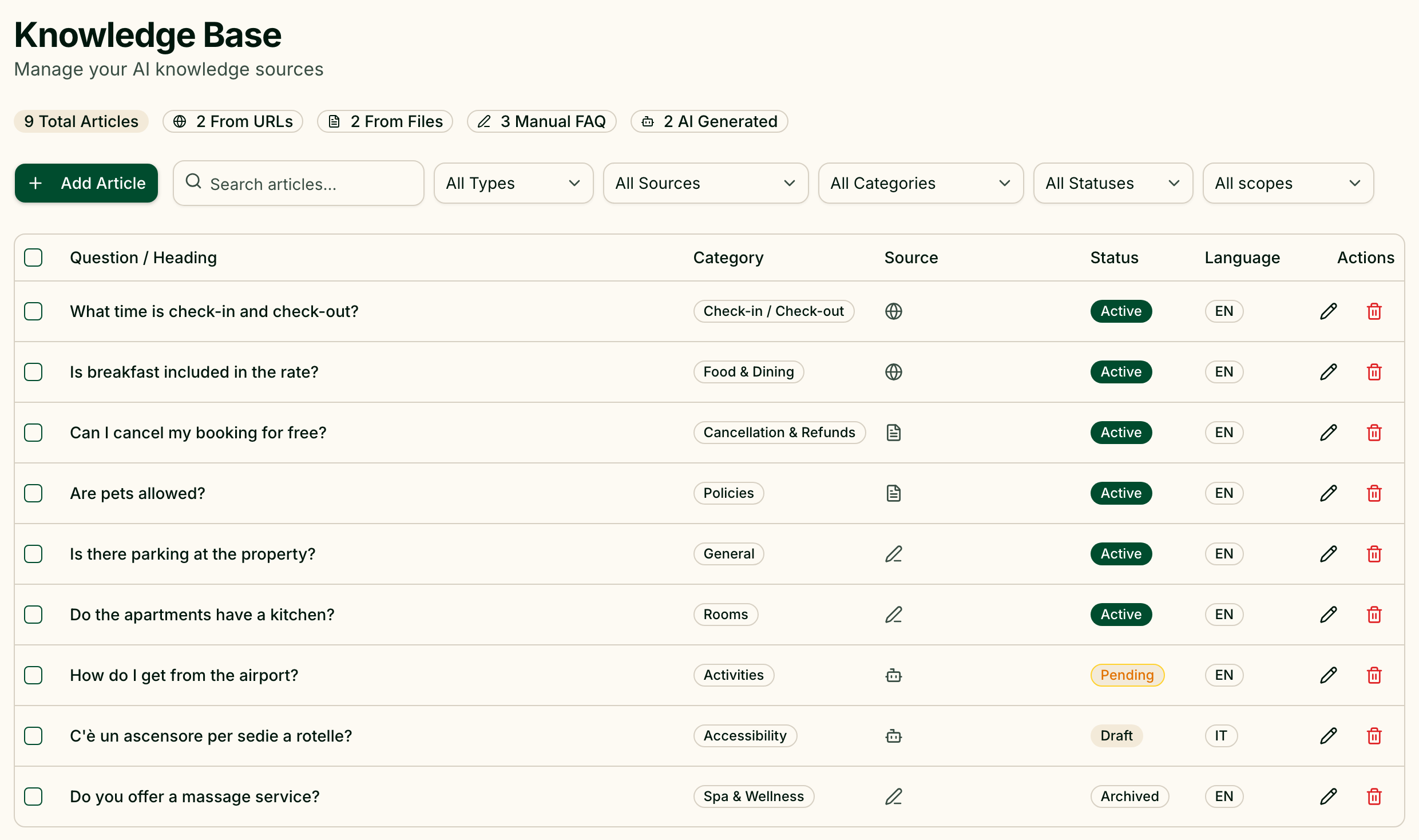
An article is one question with its answer. Its status decides whether the assistant uses it:
| Status | Used by the assistant |
|---|---|
| Active | Yes |
| Pending | No — created, waiting for someone to check it |
| Draft | No — unfinished |
| Archived | No — switched off, kept for the record |
Articles extracted from sources are worth a read before you rely on them: a website often holds last year's prices.
The counters at the top show how many articles came from websites, files, your own hand and the AI. Search with Search articles..., and narrow the list by Source type, Source, Category, Status and Scope. To act on many at once, tick them and use Change Status, or delete them together.
Write an article yourself
Add Article opens the editor:
- Question / Heading — how a guest would ask, at least 3 characters;
- Answer / Content — the answer, at least 10 characters;
- Language, Category and Status.
Categories: General, Booking, Pricing, Rooms, Policies, Food & Dining, Spa & Wellness, Activities, Safety, Check-in / Check-out, Cancellation & Refunds, Accessibility.
If your organization shares its knowledge base between properties, owners and managers also see Scope: This property or Whole organization. An organization answer is used by every property and takes priority over a property's own.
Close the gaps
Gaps collects the guest questions the assistant could not answer confidently, groups similar ones into clusters, and counts how often each was asked. The filters along the top are Open, AI sorted, Resolved and Ignored.
Each open cluster is marked with what it most likely needs:
| Mark | Meaning |
|---|---|
| New article | Nothing in the knowledge base comes close |
| Expand | A related article exists but lacks detail |
| Minor edit | A close article exists and needs a small correction |
Often the assistant has already written a draft answer for the cluster. You can Publish as new article, Edit it first, Compare with old to see it next to the existing article, or replace the existing article outright — the previous version is kept. Reject archives the draft, and for 30 days the assistant will not propose a new one for that cluster.
The cluster's menu has Create Article to write the answer yourself, Resolve, Ignore and Detach from cluster for a question that landed in the wrong group. The chats button opens the conversations the questions came from.
AI sorted holds messages that are not real questions and do not need an article: promotions and partnership offers, spam, "thanks" and "ok", and booking or price requests that are answered from live availability rather than from the knowledge base.
Not sure how it works? See example shows a demonstration cluster with its draft — its buttons are disabled.
Fill in the typical questions
Templates is a catalogue of questions guests commonly ask, grouped by category. Essential questions are recommended for every property; Extended ones are nice to have. Press Answer on a question, type the answer and Save — it becomes an article.
Current limits
- Only 10 pages of a website are read per indexing, following links up to three levels deep from the address you gave. Add important pages that were missed as separate sources.
- Social media sources cannot be re-read. To refresh one, delete it and add it again.