Mailings
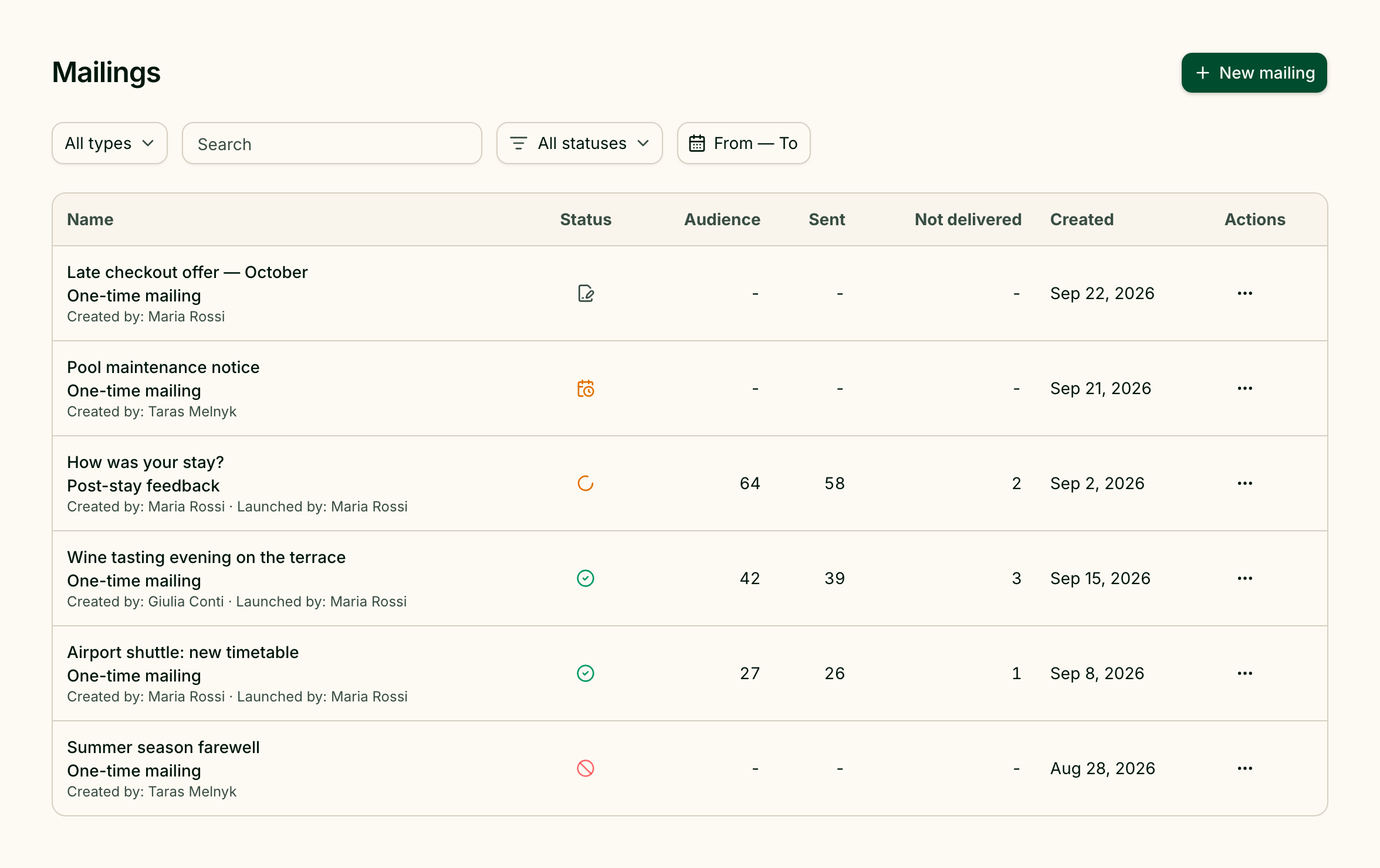
A mailing sends your message to many guests at once, through the messengers they already use to talk to you: a seasonal offer to everyone who stayed last summer, a reminder to guests arriving next week, a note to guests tagged "VIP". Each guest receives it as an ordinary message in their own chat, and their reply lands in the Inbox like any other. Open the list from Manage → Mailings, or at /mailings.
Two kinds of mailing
New mailing asks which kind you want:
| Type | What it does |
|---|---|
| One-time mailing | One message, sent once — now or at a time you set — to guests you pick by tags, language and bookings. See Create a mailing. |
| Post-stay feedback | A message sent automatically after every checkout, asking how the stay went. There is one per property. See Post-stay feedback. |
Find a mailing
Above the list:
- All types — show only one-time mailings or only feedback;
- Search — by name;
- All statuses — show one status;
- From — To — a range of creation dates.
Load more at the bottom brings the next page.
Read the list
| Column | What it shows |
|---|---|
| Name | The name, the type, Created by and, once started, Launched by |
| Status | An icon; hover over it for the name |
| Audience | How many guests matched |
| Sent | How many messages the channels accepted |
| Not delivered | How many could not be delivered |
| Created | Date, in the property's time zone |
The numbers appear once a mailing has started. Until then they show a dash.
| Status | Meaning |
|---|---|
| Draft | Still being written; nothing has been sent |
| Scheduled | Confirmed and waiting for its start time |
| Sending | Messages are going out |
| Paused | Stopped for now; used by post-stay feedback |
| Completed | Every recipient has been processed |
| Cancelled | Stopped before the end; messages already sent stay sent |
| Failed | Could not run |
Clicking a draft opens it for editing; clicking any other one-time mailing opens its results.
Act on a mailing
The Actions menu at the end of each row holds:
- Edit for a draft, or Results once it has started;
- Create copy — a new draft with the same text and audience filters. The copy may reach guests who already got the original, so check the recipients before sending it.
- Delete — removes the mailing and its delivery data. The messages themselves stay in the guests' conversations in the Inbox.
- Stop — only on post-stay feedback, when it is running.
Respect what guests asked for
Every guest has a consent state for each messenger — Unknown, Opted in, Opted out or Suppressed. You see and change it in the guest profile. Mailings never go to a channel where the guest opted out or is suppressed, and never to a blocked guest.
Who can do what
These are the defaults; an owner can adjust a team member's access.
| Role | One-time mailings | Post-stay feedback |
|---|---|---|
| Owner, Manager | Create, test, send, cancel, delete | Set up, enable, pause |
| Administrator | Create, test, send, cancel, delete | No access |
| Viewer | No access | No access |
The Mailings item appears in the Manage menu only for people who have access to at least one of the two kinds.