Guest profile
A guest profile collects everything you know about one person: their bookings, payments, notes, tags and every messenger account they use. It exists in two forms — the short profile beside a conversation in the Inbox, and the full profile on its own page.
Open the full profile
Any of these leads to the same page:
- click a row in the guest list;
- click the guest's name in the conversation header in the Inbox;
- press Open full profile at the bottom of the short profile;
- follow a guest link from mailing results or feedback requests.
The arrow in the top-left corner takes you back to where you came from. Next to the name you see the guest's language, and on the right Edit with a menu of further actions: Merge, Block Guest (or Unblock Guest) and Delete. They work as described on the Guests page.
What the profile shows
| Section | What it holds |
|---|---|
| AI summary | A short overview of the guest's conversations |
| Guest tags | Tags from your property's shared list |
| Property bookings | Every booking of this guest, the current one first |
| Service bookings | Bookings of your add-on services |
| Guest notes | Internal notes by your team |
| Recent Tasks | Tasks linked to the guest |
| Contact methods | Email, phone and messenger accounts |
| Merged profiles | Profiles joined into this one, if any |
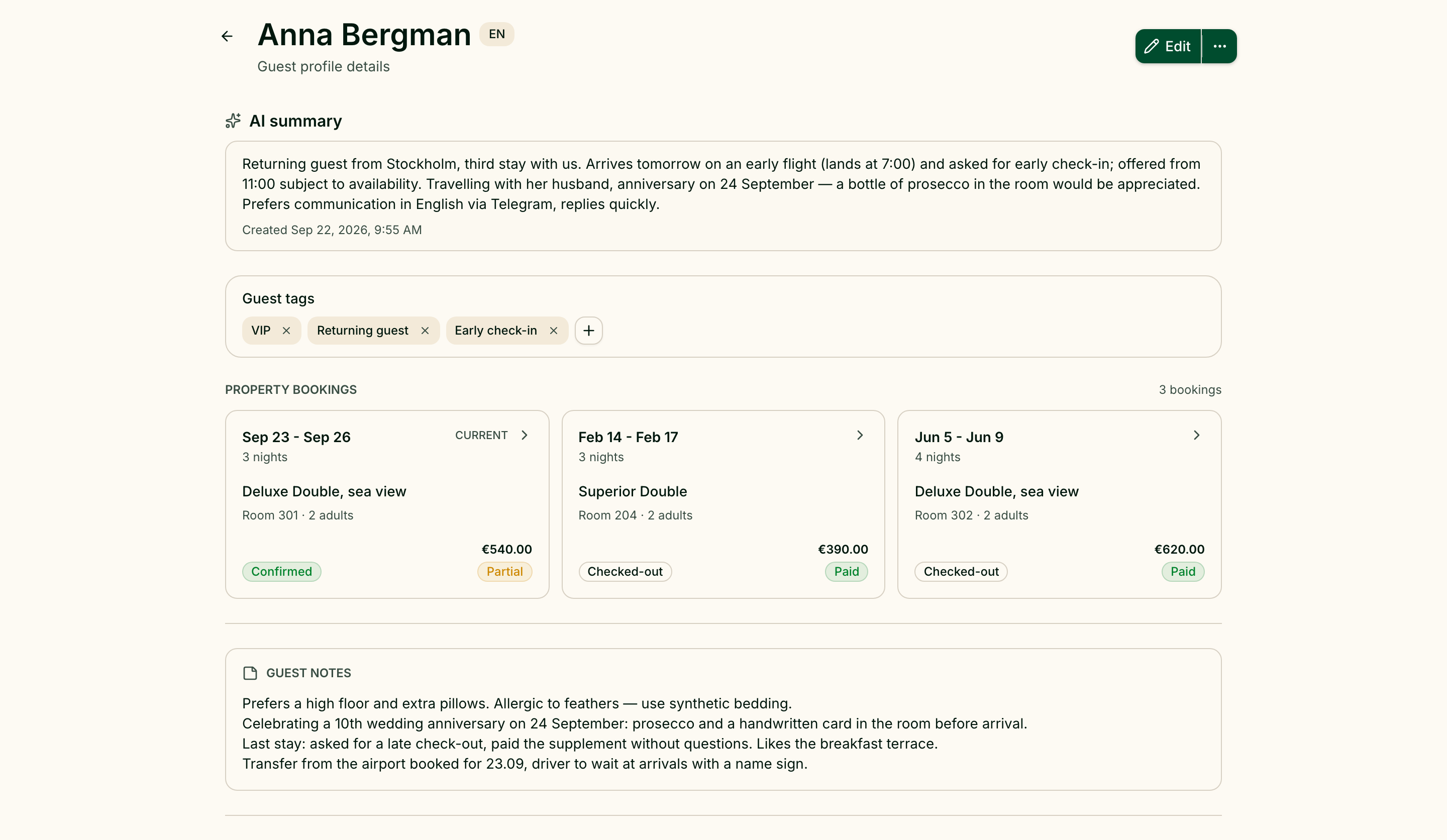
Empty sections are hidden, so a new guest's profile is short.
Keep the AI summary current
The AI summary is written from the guest's conversations. When new messages arrive after it was written, a marker says so. Update summary asks for a fresh one; it takes a moment to appear. Only people who can reply in the Inbox see the button.
Tag the guest
Tags are picked from the property's shared list — the same one used for conversations, managed on the Tags page. Add tag opens the list; a tag is saved as soon as you choose it, and removed with the cross on its badge. Tags make guests easy to find in the guest list and to target in a mailing.
Check bookings and payments
Property bookings shows a card for each stay; the one happening now or next is marked Current. A card shows the dates, room, number of guests, booking status and payment status. Click it to open Booking details with the Booking, Stay, Payment and PMS sections and the Booking comment.
The booking comment belongs to the booking, not to the guest, and can be edited by anyone allowed to edit the calendar.
Service bookings lists booked services with their start time, duration, status and payment.
Leave a note for the team
Guest notes is a free-text field for things worth remembering: "prefers a quiet room", "allergic to nuts". Click it to edit and save. Notes are internal — they are never sent to the guest.
Edit contact details
Edit switches the page to Edit Guest, where you change Display Name, Phone and Email. Save keeps the changes, Cancel drops them. If you try to leave with unsaved changes, Greetio asks first.
Under Contact methods every email and phone number has a copy button, and every messenger account has Open in Inbox to jump to its latest conversation.
Record mailing consent
Next to each messenger account in Contact methods there is a consent icon. Hover over it to see the current state for that channel, where it came from and since when:
| State | Meaning |
|---|---|
| Unknown | No confirmed consent is recorded |
| Opted in | The guest agreed to receive mailings on this channel |
| Opted out | The guest declined mailings on this channel |
| Suppressed | Mailings to this channel are blocked |
To change it, click the icon, choose the Consent state, describe where and how you got it in Staff note (required), and Save. Mailings skip guests who opted out or are suppressed on a channel. The icon is visible only to people who have access to mailings.
See every reservation at once
In the guest list, the number in the Reservations column opens a page with all of the guest's bookings at this property: dates, nights, status, where the booking came from, room, occupancy, total and payment status, plus the booking comment. Back to guests returns to the list.
Use the short profile in the Inbox
On a wide screen the Inbox shows a column with the short profile to the right of the conversation, so the most useful facts are visible while you reply:
- the AI summary, with Update summary;
- Guest tags;
- the current or next booking — Room, Occupancy, Paid — with its booking comment;
- up to two Service bookings;
- Guest notes;
- Contact — email, phone and language;
- up to three Messaging accounts, each opening its conversation.
When the guest has more than one booking, See all opens the full profile. The button on the column's edge — Collapse guest profile column and Expand guest profile column — hides and shows it; Greetio remembers your choice.
Current limits
- The short profile needs a wide screen. It is not shown on phones and narrow windows; open the full profile instead.