Sign up and sign in
Greetio works in the browser — there is nothing to install. Create an account at /signup and sign in at /login. Both pages have a language switcher, so you can pick the interface language before you type anything.
If a colleague has invited you to their team, skip to Join a team you were invited to: you do not need to sign up separately.
Create an account
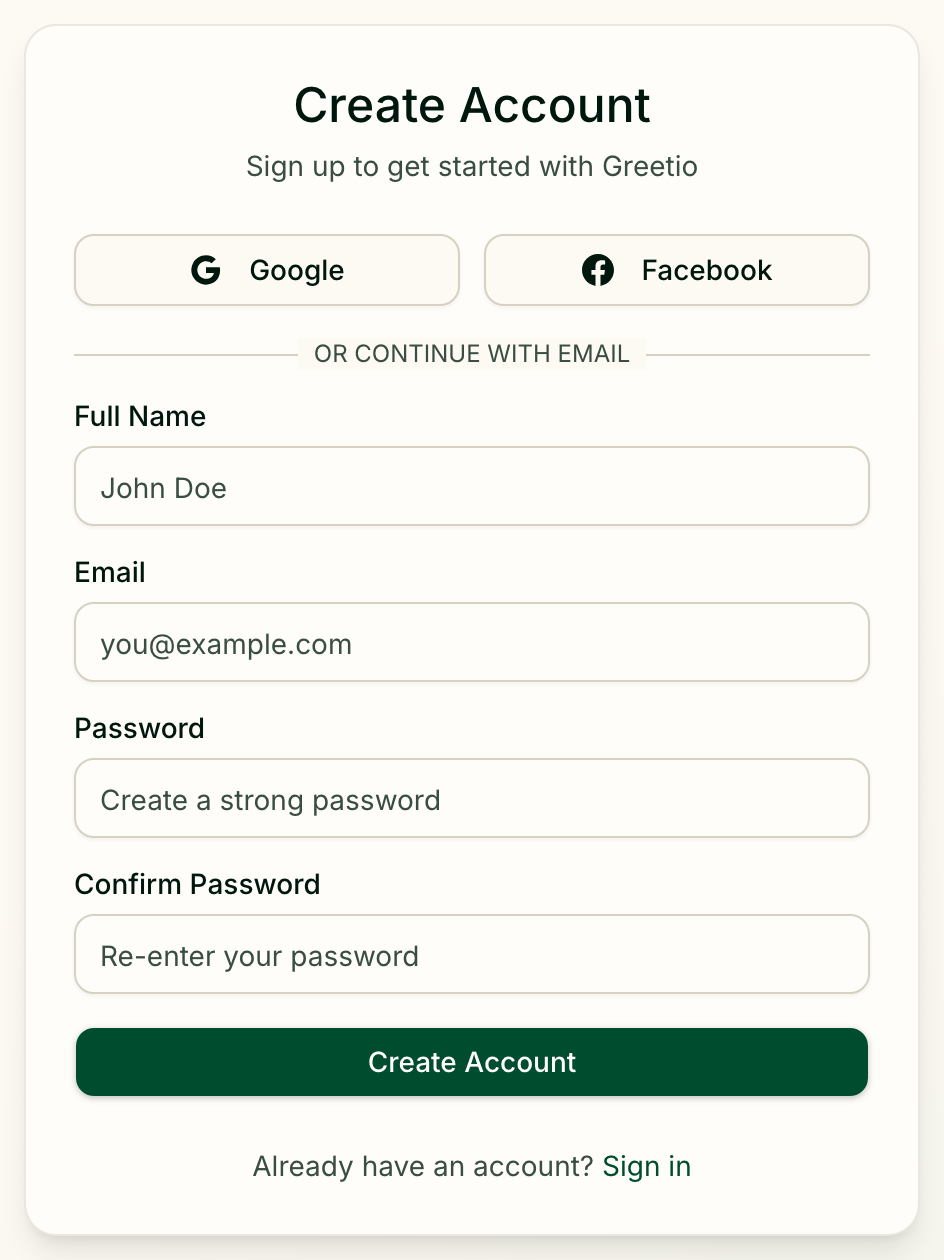
On Create Account choose one of three ways:
| Way | What happens |
|---|---|
| Pick your Google account and you are in | |
| Confirm with your Facebook account and you are in | |
| Fill in the form below the buttons |
The email form asks for Full Name, Email, Password and Confirm Password. The password needs at least 8 characters, and both password fields must match. Press Create Account.
You will see Check Your Email. Open the letter from Greetio and click the link to activate the account. If the letter is not there after a minute or two, look in the spam folder.
After that Greetio asks for your name and your organization's name — see Onboarding — and then opens the setup wizard.
Sign in
Welcome Back offers the same choice: Google, Facebook, or your email and password followed by Sign In.
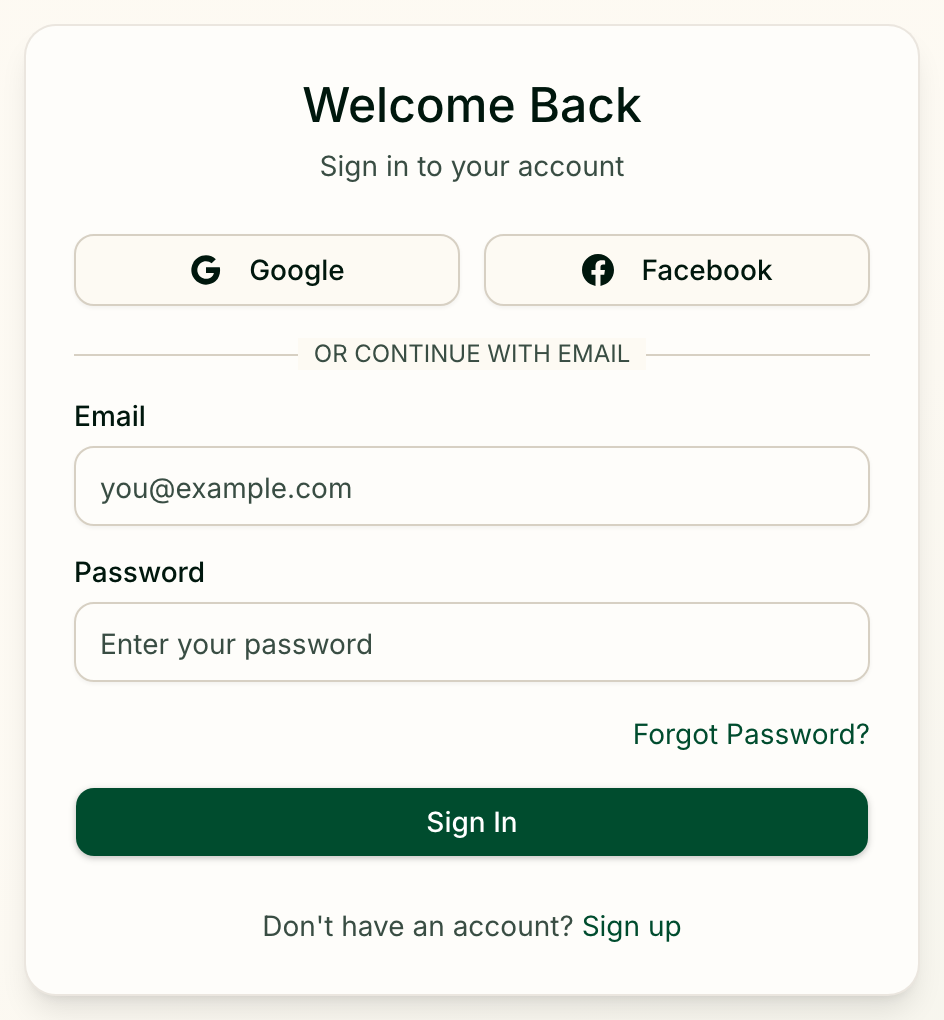
Where you land depends on how far you got last time:
| Your state | Where Greetio takes you |
|---|---|
| Onboarding not finished | Back to onboarding |
| Setup wizard not finished | Back to the wizard |
| Everything done | The inbox |
Forgot your password
- On the sign-in page click Forgot Password?
- On Reset Your Password enter your email and press Send Reset Link.
- Open the letter and follow the link. It works for one hour and only once.
- On Choose a New Password fill in New Password and Confirm New Password — at least 8 characters, different from the old one — and press Update Password.
You return to the sign-in page with a note that the password was changed.
Greetio shows the same "check your email" message whether or not an account exists for that address, so nobody can use the form to find out who is registered. If the link has expired or was already used, the page says Reset Link Invalid — press Request New Link and start again.
Join a team you were invited to
When someone adds you to their team, you receive an email with an invitation link. The page it opens, You've been invited!, shows the Organization, Your Role and who Invited by. The address the invitation was sent to is shown under This invitation was sent to and cannot be changed: the invitation belongs to that address only.
How you join depends on whether you already have a Greetio account:
- You are new. Enter Your name and a password (at least 8 characters), then press Join Team.
- You already have an account. Enter your password and press Join Team.
- Either way, you can press Google or Facebook instead, as long as that account uses the invited address.
Welcome to the team! confirms it, and a moment later you are in the inbox. People who join by invitation skip onboarding and the setup wizard — the organization and its properties already exist.
If you are already signed in when you open the link:
- with the invited address, you see You're logged in as and a single Accept Invitation button;
- with a different address, you see Email Mismatch. Press Sign Out & Try Again and sign in with the address the invitation was sent to.
An invitation also wins over everything else: if you sign in any other way while an invitation for your address is waiting, Greetio takes you to the invitation page rather than asking you to create an organization of your own.
When the invitation link does not work
| Message | What it means | What to do |
|---|---|---|
| Invitation Expired | The link is too old | Ask the person who invited you to send a new one |
| Invitation Not Found | The link is wrong or has already been used | Check you opened the latest email, or ask for a new invitation |
| Already a Member | You have joined this organization before | Press Go to Inbox |
Inviting people, roles and what each role may do are covered in Team.