Team and roles
Colleagues join Greetio by invitation. Each person gets a role that decides what they can see and change, and can be limited to some of your properties. Open /settings/team, or Settings → Team.
Departments are the second half of the picture: they are the people — staff or not — who receive operational tasks in Telegram, with their shifts. They live under Manage → Departments.
Pick the right role
There are four roles. The owner is whoever created the organization; the other three are chosen when you invite someone.
| Role | By default |
|---|---|
| Owner | Everything, including deleting a property and the account. Cannot be invited, demoted or removed. |
| Manager | Everything except deleting a property: team, organization settings, payments, analytics, ads report. |
| Administrator | Day-to-day work: chats, AI Autopilot, guests, channels, chat widget, calendar, tasks, mailings. Sees rooms, rates, knowledge base, property and team without changing them. No payments, analytics, ads report or organization settings. |
| Viewer | Reads chats, guests, content and settings without changing anything. No payments, analytics, ads report or mailings. |
Every role can edit its own profile. The defaults can be adjusted person by person, as described below.
Invite a colleague
Owners and managers see Invite Team Member at the top of the page.
- Enter the Email.
- Choose the Role: Manager, Administrator or Viewer.
- If the organization has more than one property, choose Property Access: All properties, or Specific properties and tick the ones this person should see.
- Press Send Invitation.
Greetio emails the invitation and also shows the invite link, so you can send it another way. The link is valid for 7 days.
Until it is accepted, the invitation waits under Pending Invitations with its role, its expiry and who sent it. From there you can Copy link again or Cancel it. An expired invitation is shown faded.
Manage members
Team Members lists everyone in the organization with their email, role and Access — All, or the number of properties they are limited to. The menu at the end of a row has Edit and Remove.
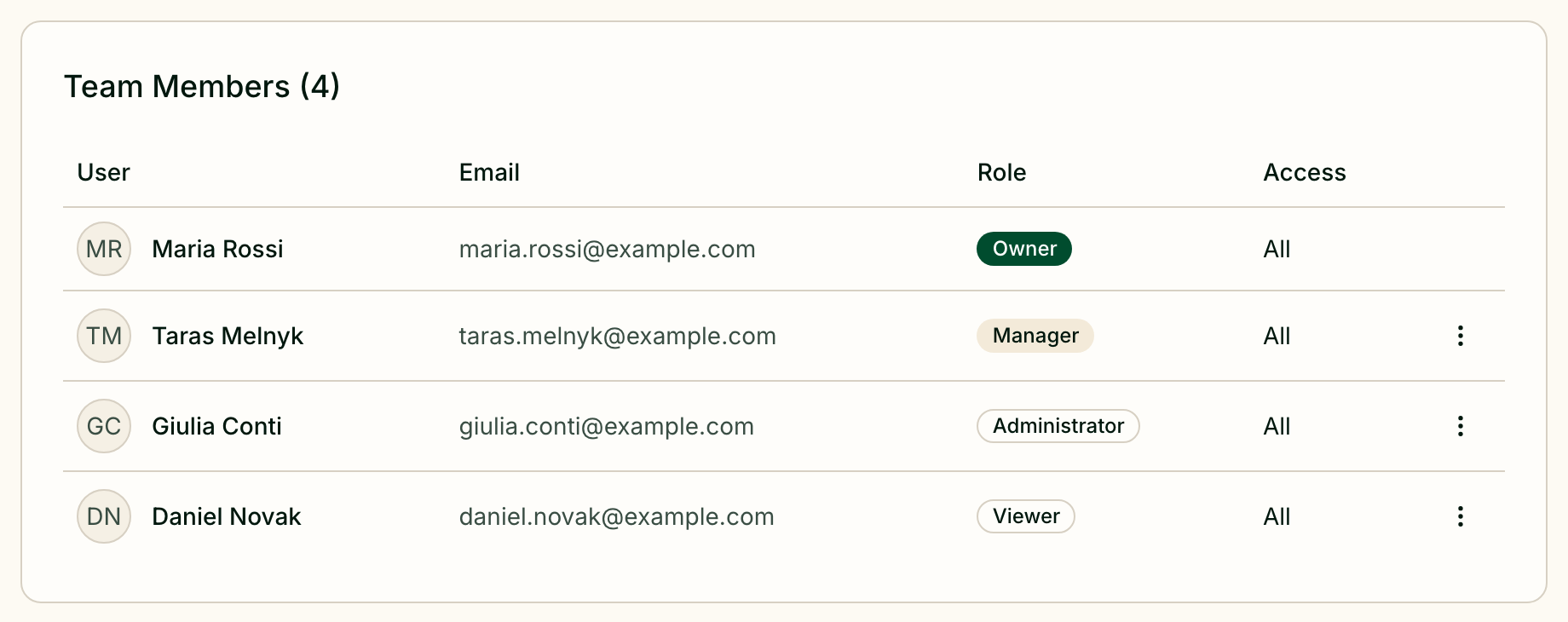
Who can change whom:
- the owner manages everyone except other owners;
- a manager manages administrators and viewers.
Edit changes the role and the property access. Remove deletes that person's account: they lose access to every conversation and setting at once. What they created stays in your organization but is no longer attributed to them. This cannot be undone.
Fine-tune one person's access
In Edit, turn on Customize permissions to override the role for individual sections. Each section gets one of:
| Choice | Effect |
|---|---|
| Inherit | Whatever the role gives; the brackets show which level that is |
| Hidden | The section disappears from this person's menus |
| Read only | They can open it but not change anything |
| Read & write | Full access |
The list covers Inbox, AI Autopilot, Knowledge Base, Team, Property, Channels, Chat widget and Booking widget, each step of mailings, post-stay feedback, Integrations, rooms, rates, services, bookings, promotions, guests, quick replies, tags and the ads report. The ads report can only be hidden or read — there is nothing in it to write.
Chat widget and Booking widget are separate rows on purpose: you can hide a widget from someone without touching their access to Channels or Services.
A section switched off for your whole organization shows Disabled for org and cannot be granted to one person.
Organize departments
A department is a group of contacts who receive tasks for one area — reception, housekeeping, maintenance. Greetio sends each contact their tasks in Telegram and uses their shifts to decide who is on duty. How tasks themselves work is described in Tasks.
Open Manage → Departments, at /departments. Owners and managers change departments; everyone else sees them with a Read-only access note.
Create a department
Add department asks for:
- Name,
- Description — what the department handles; it helps Greetio sort tasks,
- Admin department — the fallback that receives task notifications when the right department has nobody on shift. Only one department can be the admin one.
Contacts and schedules are added on the department's own page once it exists.
The list of departments shows, for each one, whether it is the admin department, how many people it has, its primary contact, who is working now or next, and how many tasks it holds.
Add contacts and connect them to Telegram
A department page has three tabs: Shifts calendar, Contacts and General (name and description).
On Contacts, Create contact asks for a Name and a Calendar color. Turn on Set schedule now to give the contact a shift pattern in the same step.
Every contact gets a personal Telegram invite link, shown in the Invite link column. Copy link and send it to the person. When they open it in Telegram and press Start, the status changes from Invited to Joined, and from then on their tasks arrive in that chat. What the bot can do is described on the Notifications page.
Mark one contact as Primary. The primary contact is notified when a task has no assignee or the assignee is unavailable.
Plan shifts
A contact's schedule is a repeating cycle. Suggested schedule offers the usual patterns — 1/2, 1/3, 2/2, 3/3, 4/4, 5/2, Day Night - 5/2 — or Custom, where you build the cycle yourself from work and off segments with shift start and end times. Click a date in the preview calendar to set where the cycle starts; the forecast of shifts updates as you change it.
The Shifts calendar tab shows every contact's shifts by Week or Month, one colour per contact:
- click a shift to mark a Day off or Sick leave, or to Reschedule it;
- drag a shift to another day to move it;
- use a day's menu to Add shift or Start schedule here;
- Filters narrow the view to certain contacts or entry types.
Changed shifts keep their history, so you can see what was moved and by whom.
Delete a department
A department cannot be deleted while it still has linked tasks — move or close them first. Deleting removes its contacts, and contacts already connected to Telegram get a message that their access to the department has ended.
Current limits
- The number of users depends on the plan. Members and live invitations count together; the default limit is 10.
- The owner is fixed. Ownership cannot be passed to someone else from the interface.
- Department contacts are reached through Telegram only.